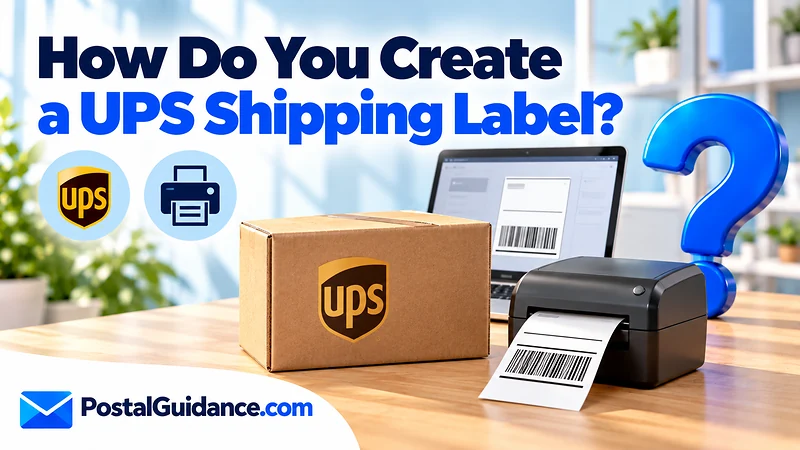
How do you create a shipping label for UPS? Use Create a Shipment on ups.com, enter both addresses and package details, pay, and print. A guest can do it, and The UPS Store prints if you have no printer.
Making the label is only the first of four separate jobs. Creating, printing, attaching and handing over the package each have their own rules, and mixing them up is where most mistakes happen. This guide covers all four in order.
How do you create a shipping label for UPS on ups.com?
UPS lists five steps on its label support page. They work the same whether you ship one box or many.
- Open Create a Shipment. Go to UPS.com and start a shipment. You can log in or use the guest option.
- Enter the addresses. Fill in the shipper (you) and the recipient.
- Enter package details and pick a service. Add the size and weight, then choose how fast it should travel.
- Choose payment. Pay for the shipment before the label is released.
- Print the label. Print at home or take the shipment to The UPS Store to have it printed.
The service you pick in step three sets the price and the speed. If you are unsure, read what UPS Ground is first, since it is the standard choice for most parcels.
Do you need a UPS account to make a label?
No. UPS says you can reach Create a Shipment either logged in or as a guest. A guest can finish the same five steps without setting up a profile.
An account is still useful. Logged in users can open View Shipping History later and reprint a label without starting over. A guest has no profile to log into, so keep the label file or the confirmation you receive.
How do you print a UPS label at home?
Printing at home works if your browser is set up correctly. UPS says the browser must accept graphics, accept cookies, allow JavaScript and have Secure Socket Layer encryption turned on. It also advises you to disable pop up blockers, because the label often opens in a new window.
UPS lists support for current versions of Chrome, Firefox, Safari and Edge on desktop. On phones it lists Android 6 or later and iOS 10 or later. If the label window does not open, the blocker is the first thing to check.
The label does not need a special printer. UPS describes the result as a printed label, so a standard printer is the usual route. Print one copy for each package.
Can you print a UPS label online without a printer?
You can create the label online, but it still has to be printed somewhere. UPS names The UPS Store as the alternative to printing at home in the same step list. That covers readers asking whether they can get a UPS label with no printer at all.
The UPS app adds a no printer route. After you complete a shipment in the app, UPS says the shipping confirmation includes a barcode, and you take that barcode to any The UPS Store location to have the label printed there. The app also lets you ship as a guest without a UPS ID.
Our guide on whether UPS can print your label covers the store and code options in detail, including what to bring.
Which label option fits your situation?
| Your situation | What to do | What UPS says |
|---|---|---|
| You have a printer and a computer | Create the shipment on ups.com and print at home | Browser must allow graphics, cookies and JavaScript |
| You have no account | Use the guest option in Create a Shipment | Guest or logged in both work |
| You have no printer | Print at The UPS Store after creating the shipment | Listed as the alternative to home printing |
| You lost the label | Log in, open View Shipping History, reprint | Choose the shipment, then the Printing Activities tab |
| You have a phone but no printer | Ship in the UPS app and show the barcode at The UPS Store | Confirmation includes a barcode for in store printing |
| You are sending a return | Use the retailer label, or create your own shipment | Mobile barcode printing at participating locations for eligible returns |
Readers who ask how do you create a shipping label for UPS usually find the rest routine. The same five steps apply to every parcel you send.
How do you reprint a UPS label?
Log into your UPS profile and open the View Shipping History app. Select the shipment that needs a new label, then pick the label type you want from the Printing Activities tab. If more than one printer is connected, choose the one to use.
This is the main reason to create the shipment while logged in. A smudged or crumpled label is easy to replace if the record is saved to your profile.
How do you label a package for UPS?
What goes on the box depends on the service. UPS says domestic Air shipments use the label printed from UPS.com, or an Air Shipping Document. Ground shipments need an address label with to and from information inside the box and attached to the outside, and UPS suggests a Ground tracking label for added protection.
Before you attach anything, remove or cover old labels. Old barcodes and addresses can confuse the scanners that route your parcel. UPS also tells shippers to seal the box with tape at least 2 inches wide.
How do you tape a UPS shipping label?
UPS does not publish exact taping positions on its label support page, so there is no official diagram to quote here. The practical rule is to place the label flat on the largest face of the box, where the barcode is fully visible and not folded over an edge or seam. Clear tape over the whole label protects it, as long as the tape does not blur the barcode.
If you reuse a box, a fresh label on a clean surface is safer than taping over the old one. A good box also helps; what UPS gives you versus sells you explains your options.
What happens after the label is made?
The label does not ship anything by itself. UPS lists three ways to hand the package over: schedule a pickup, drop it off at a UPS location, or give it to a driver. A scheduled pickup carries an extra fee, and drop off at a location requires ID.
Plan this step before you print. If the nearest location closes early, check what time The UPS Store closes first.
What goes wrong when you create a UPS label?
Most problems come from the browser or from the details you typed. If the label window never opens, a pop up blocker is the usual cause. If it opens but shows nothing, check that cookies and JavaScript are allowed for UPS.com.
UPS also lists older software as a known issue. Its page tells users to remove UPS.com from Internet Explorer’s Compatibility View settings. A current browser avoids that problem entirely.
Wrong details are harder to fix after printing. A label carries the addresses and service you chose, so a typo means you should create the shipment again rather than write on the label. Check the apartment number, the ZIP code and the weight before you pay.
What is the difference between a label and a drop off?
A label is the printed record of your shipment. It holds the barcode that UPS scans and the addresses it routes by. It is not proof that UPS has taken the box.
The package is only in the UPS network once you hand it over by pickup, drop off or driver. Keep your tracking number from the label so you can follow it after that. UPS explains its own rules on its how to ship a package page.
How do you create a UPS label for a return?
UPS gives three ways to get a return label: the shipper may have included one in the package or sent instructions to print one, you can create your own shipment on ups.com if they did not, or you can take the package to The UPS Store and create the label there. For eligible returns, UPS also offers mobile barcode printing at participating locations, so you bring the item and the QR code from your return instructions instead of a printed label.
UPS says fees vary for returns, since return shipping, pickup, packaging and return to sender services may carry charges, and a scheduled pickup adds a fee. The label still has to be created, printed, attached and handed over, in that order.
The question of how do you create a shipping label for UPS matters less than checking the details. A clean label with correct addresses is what gets the box moving.
What should you check before you print?
- Confirm the recipient address, including the apartment or suite number.
- Weigh the box and measure it so the quoted price matches what UPS scans.
- Compare options with the shipping cost comparison tool before you pay.
- Pick a speed that matches your deadline using the delivery time estimator.
If you need speed, UPS Next Day Air is the usual fast choice. Prices change often, so read the quote on the screen before paying.
Bottom line on making a UPS label
Create the shipment, pay, print, tape the label flat and hand the box over. A guest can do all of it. For a return, start with how to return a UPS package.